
Guides
Guide
Topic page manager
Topic page manager
You want to add colleagues as topic page managers and decide which topic pages they look after.
Manage the topic page team
Your goal
You want to add colleagues as topic page managers and decide which topic pages they look after.
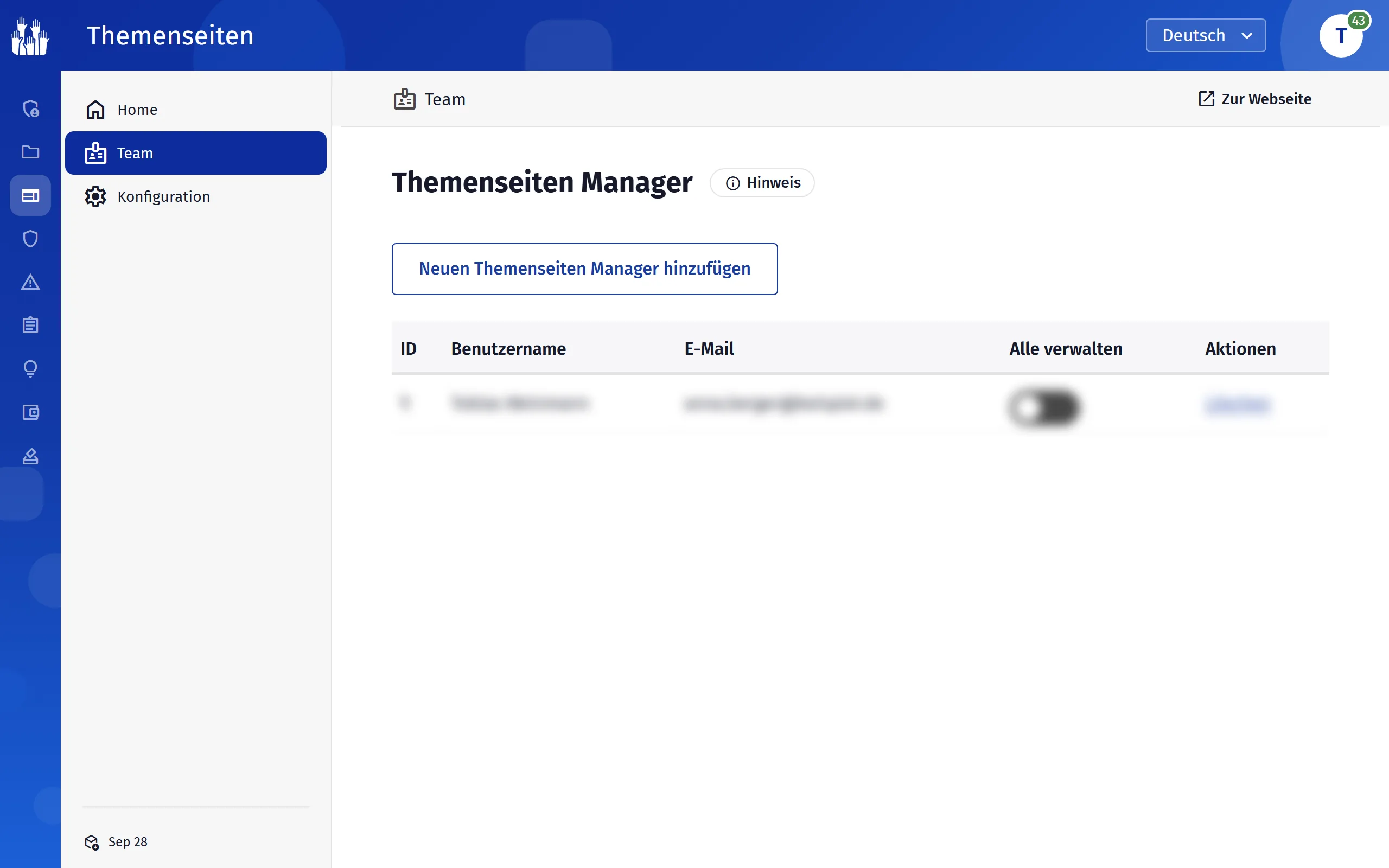
Open “Team”
What you need
- You are an administrator or a topic page manager with “Manage all”.
How it works
- In the topic pages, open “Team” and click “Add new topic-page manager”.
- Search for the person by email or username and click “Add”.
- If the person has no account yet, enter their full email address and click “Invite as topic page manager”. They get an email and have the role as soon as they create their account.
- On “Home”, click “Edit” on the topic page the person should look after.
- Under “Topic-page managers”, check the box next to the person and click “Save”.
The decisions
- Individual topic pages or all of them?
- In the “Team” list, turn on the switch in the “Manage all” column. The person can then access all topic pages, create new ones, delete them and manage the team themselves.
- Take the role away again?
- In the “Team” list, click “Delete” next to the person and confirm the security prompt.
Common pitfalls
A new manager with no checkmark on a topic page does not see a single topic page on “Home”. Don’t forget step 5.
The search shows four results at most. Enter the full email address to find the right person.
Open invitations are listed in the “Team” list under “Pending role assignments”. The role only applies if the person creates their account with exactly this email address.