
Reference
Reference
Idea management
Idea management
In the “Configuration” you decide what the idea platform offers citizens. You also maintain the intro text, notice message and contact persons for the start page of this area.
Configuration
In the “Configuration” you decide what the idea platform offers citizens. You also maintain the intro text, notice message and contact persons for the start page of this area.
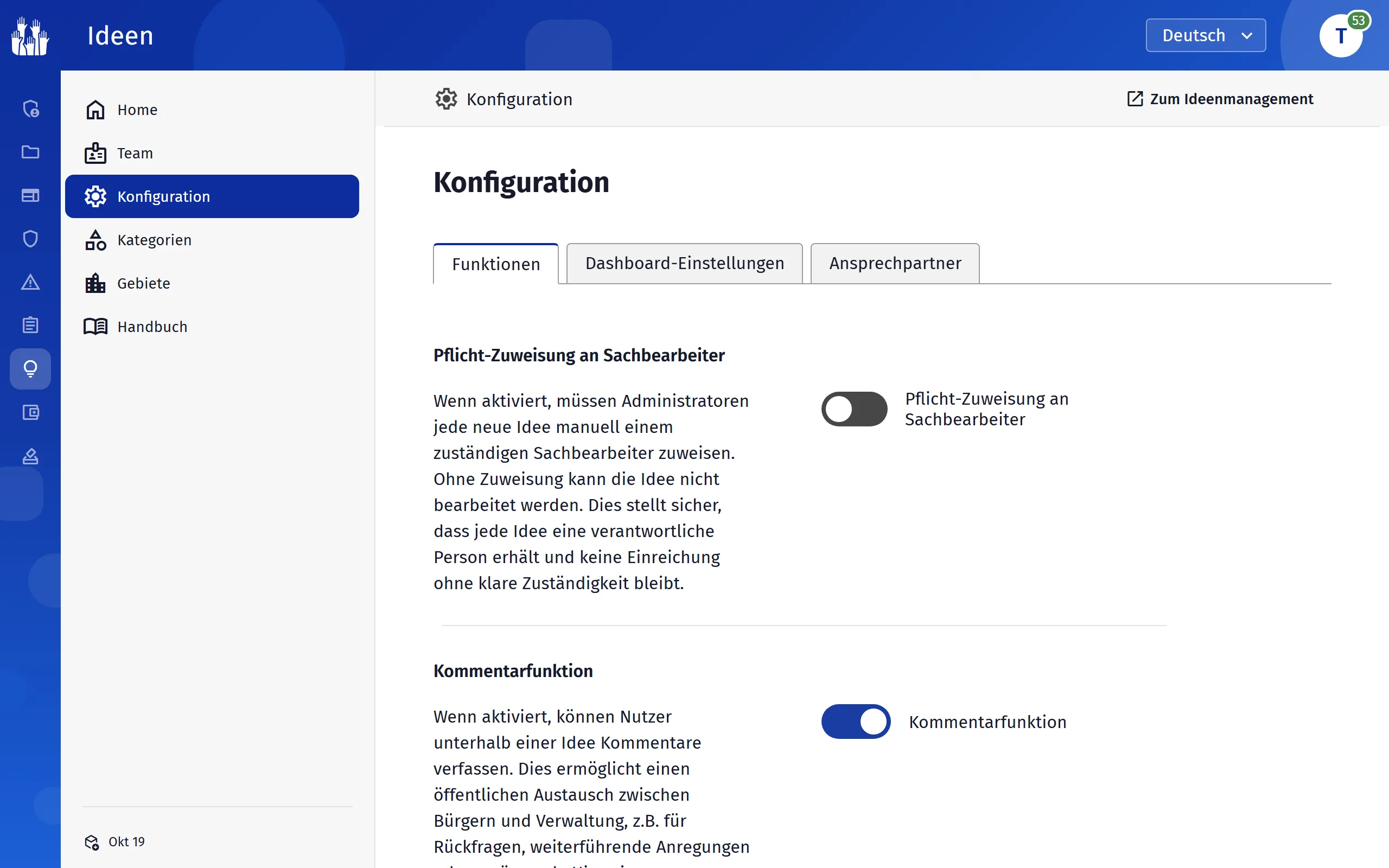
Only administrators, idea administrators and case officers with “Manage all” can see the “Configuration”.
“Features” tab
Each switch saves immediately.
- “Required assignment to officer”
- Case officers without “Manage all” see and edit only the ideas assigned to them. With the switch off, all case officers see all ideas.
- “Comments”
- Logged-in users can comment on every idea.
- “Introduction text for ideas”
- Shows an intro text above the idea overview. It does not appear on smartphones.
- “User-drawn maps”
- When submitting an idea, users can draw areas on the map, not just a single point.
- “Additional documents”
- The form offers “Add documents”. On the idea’s page, the documents are available for download.
- “Embed external video”
- The form offers “Add video” for a link to YouTube or Vimeo.
- “Administrator approval”
- The switch currently changes nothing. Every new idea becomes public only once it is approved in the “Visibility” column.
“Dashboard settings” tab
- “Intro text”
- Appears on “Home” (start page) in this area, as orientation for your team. Maximum 350 characters.
- “Notice message”, “Notice active”
- A yellow info box at the very top of “Home”, for example for deadlines. With “Notice active” you show or hide it without deleting the text.
Only your team sees both of these. They do not appear on the public idea platform.
“Contact persons” tab
With “Create new contact person” you select a person and enter their role, email and phone number. The contact persons appear on “Home” next to the intro text.
Step by step: Set up idea management