
Guides
Guide
Idea management
Idea management
You want to approve a submitted idea, assign it, revise it, and add an official response.
Edit and respond to an idea
Your goal
You want to approve a submitted idea, assign it, revise it, and add an official response.
Open idea management
What you need
- You are registered as a case officer in idea management.
Steps
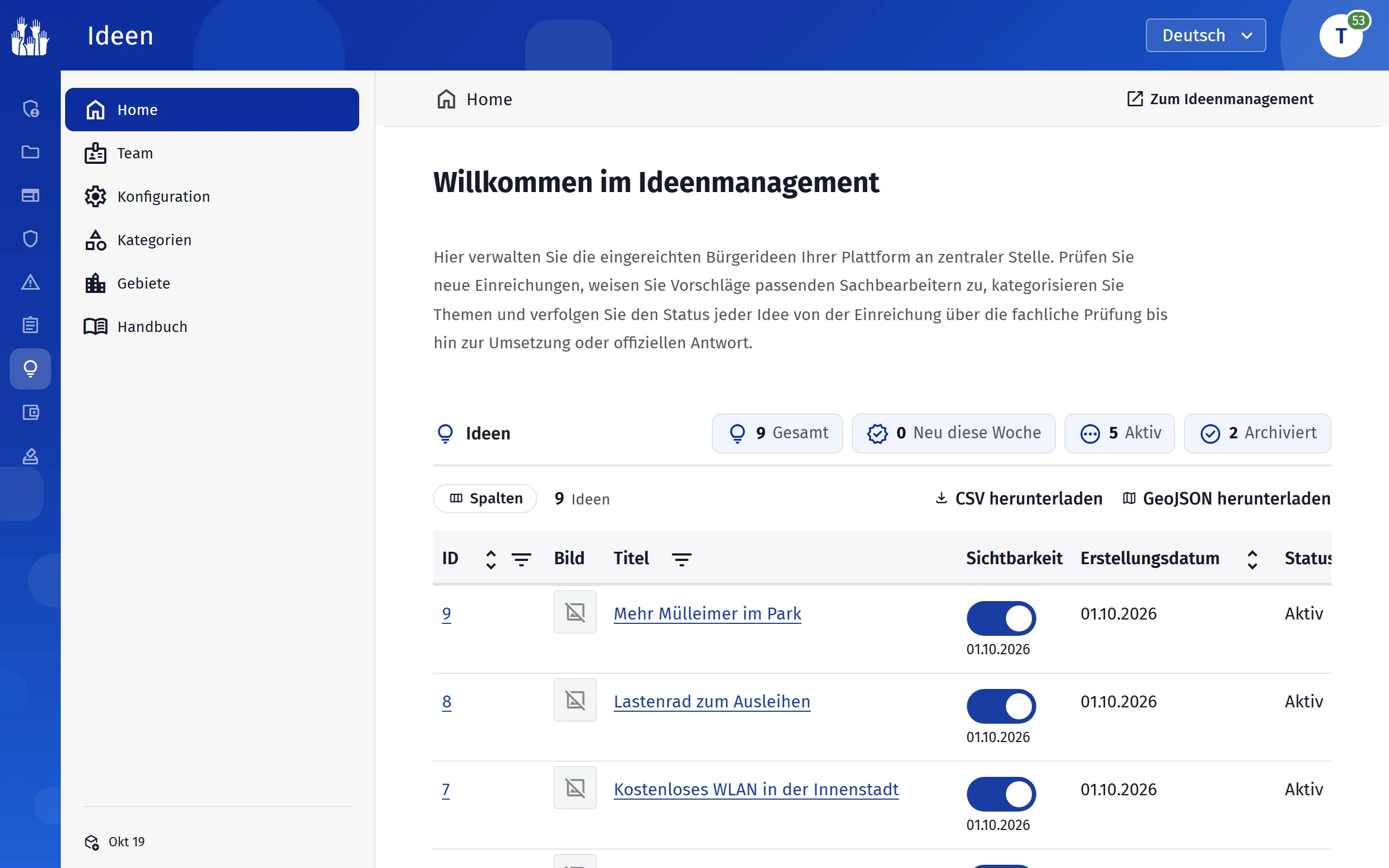
- Click “Home”, then click the title of the idea in the list. You land on the “View” tab.
- Click “Edit” if you want to change the title, description, image, category, or location. Then click “Save”.
- Under “Official response”, write your response and click “Save”.
- Record questions and agreements under “Internal notes” and click “Create note”. Above the notes, “Zu:” (to) shows the title of the idea.
- On the “Administer” tab, set “Votes required”, “Timeframe (days)”, and “Officer”. Each field has its own “Save” button.
- Approve the idea in the list on “Home” with the switch in the “Visibility” column.
The decisions
- Who is responsible?
- “Administer” tab, “Officer”. The newly assigned person gets an email. If you select no one, the default case officer of the category or area applies.
- How many votes does the idea need?
- “Votes required”: If the idea reaches this number, it counts as successful.
- How long does the idea run?
- “Timeframe (days)” counts from approval. While it runs, the idea is “Active”. After that, it is “Archived”. Before approval, it is “Pending”.
Common pitfalls
The official response does not currently appear on the public page of the idea. The person who submitted the idea also gets no email about it.
If you switch approval off and on again, the “Time scope” starts over.
“Votes required” and “Timeframe (days)” only accept values of 1 or higher.
If “Required assignment to officer” is switched on, you only see the ideas assigned to you. With “Manage all”, you see all of them.